

Knowledge Base Quickstart
Build a queryable knowledge store from your documents in minutes. This quickstart walks you through creating a Knowledge Base, uploading a document, and asking questions using the built-in AI chat.
Time to complete: ~10 minutes
Prerequisites
- Access to the Vue.ai platform
- A sample document to upload (PDF, Markdown, or text file)
Step 1: Navigate to Knowledge Base
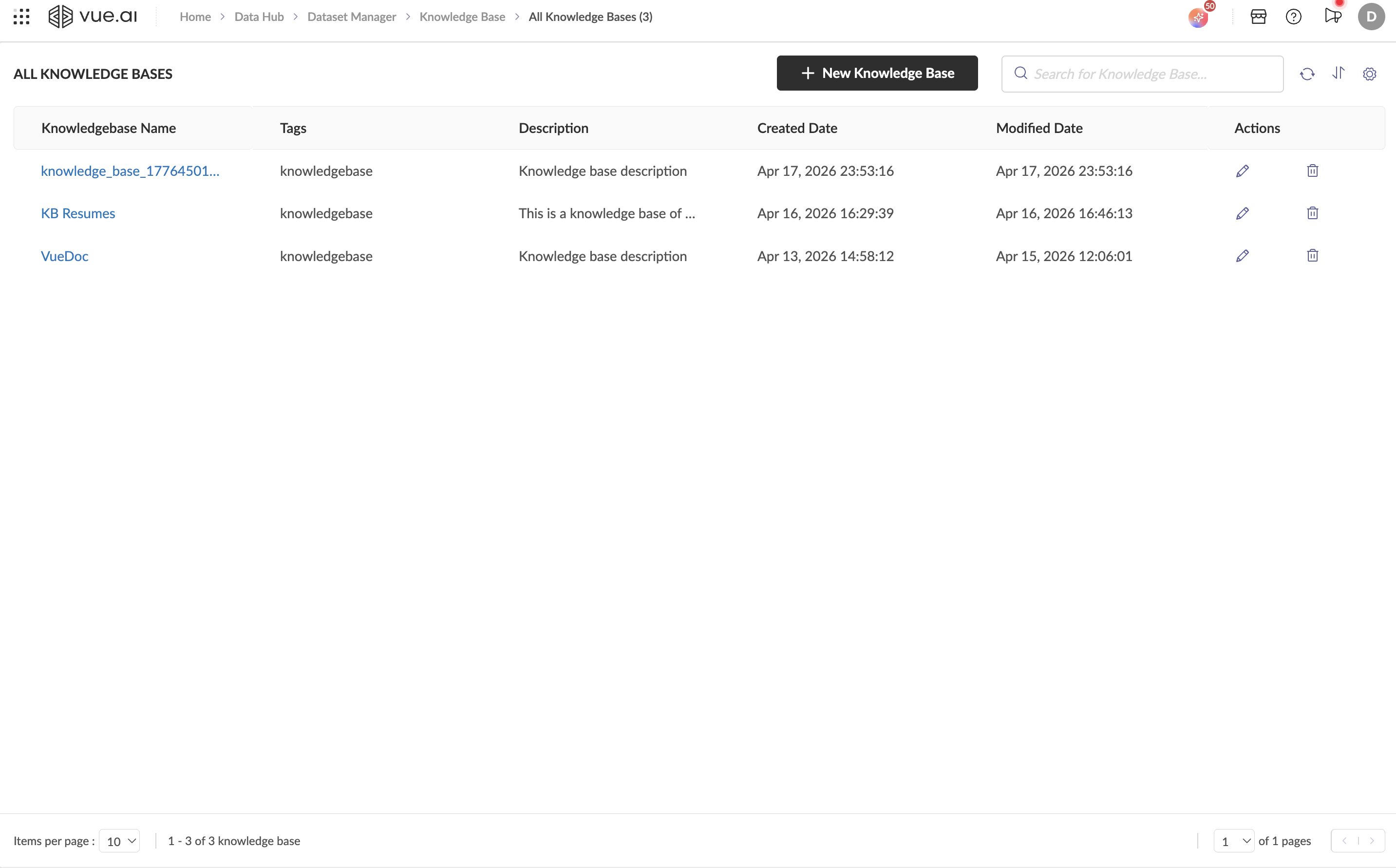
From the Vue.ai home screen, go to Data Hub → Dataset Manager → Knowledge Base.
You will see the Knowledge Base listing page.
Step 2: Create a New Knowledge Base
- Click the + New Knowledge Base button.
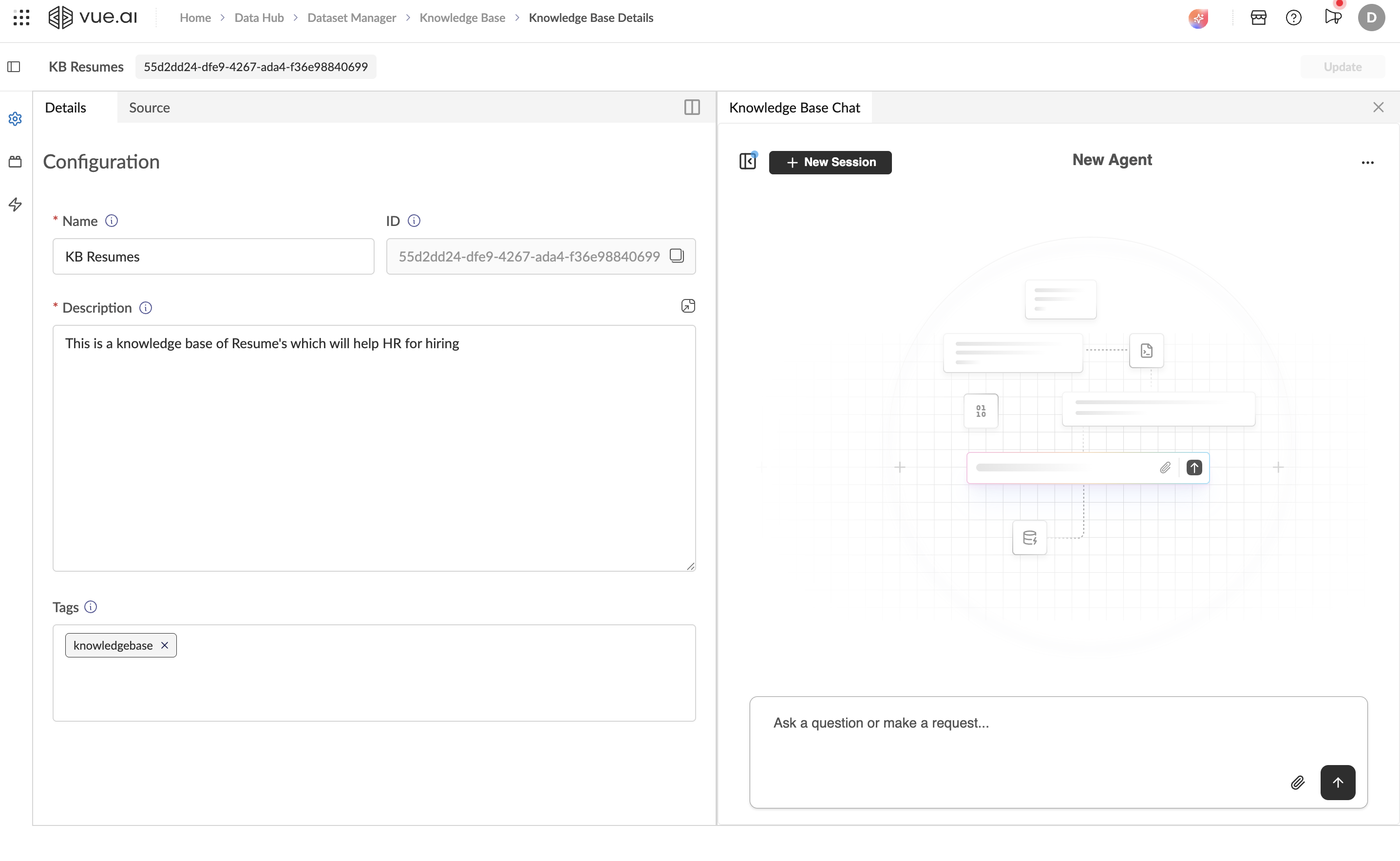
- The platform creates a new KB and takes you to its detail page.
- In the Details tab:
- Replace the auto-generated name with a meaningful name (e.g., "My First KB").
- Add a description (e.g., "Test knowledge base for quickstart").
- Click Update to save.
Step 3: Upload a Document
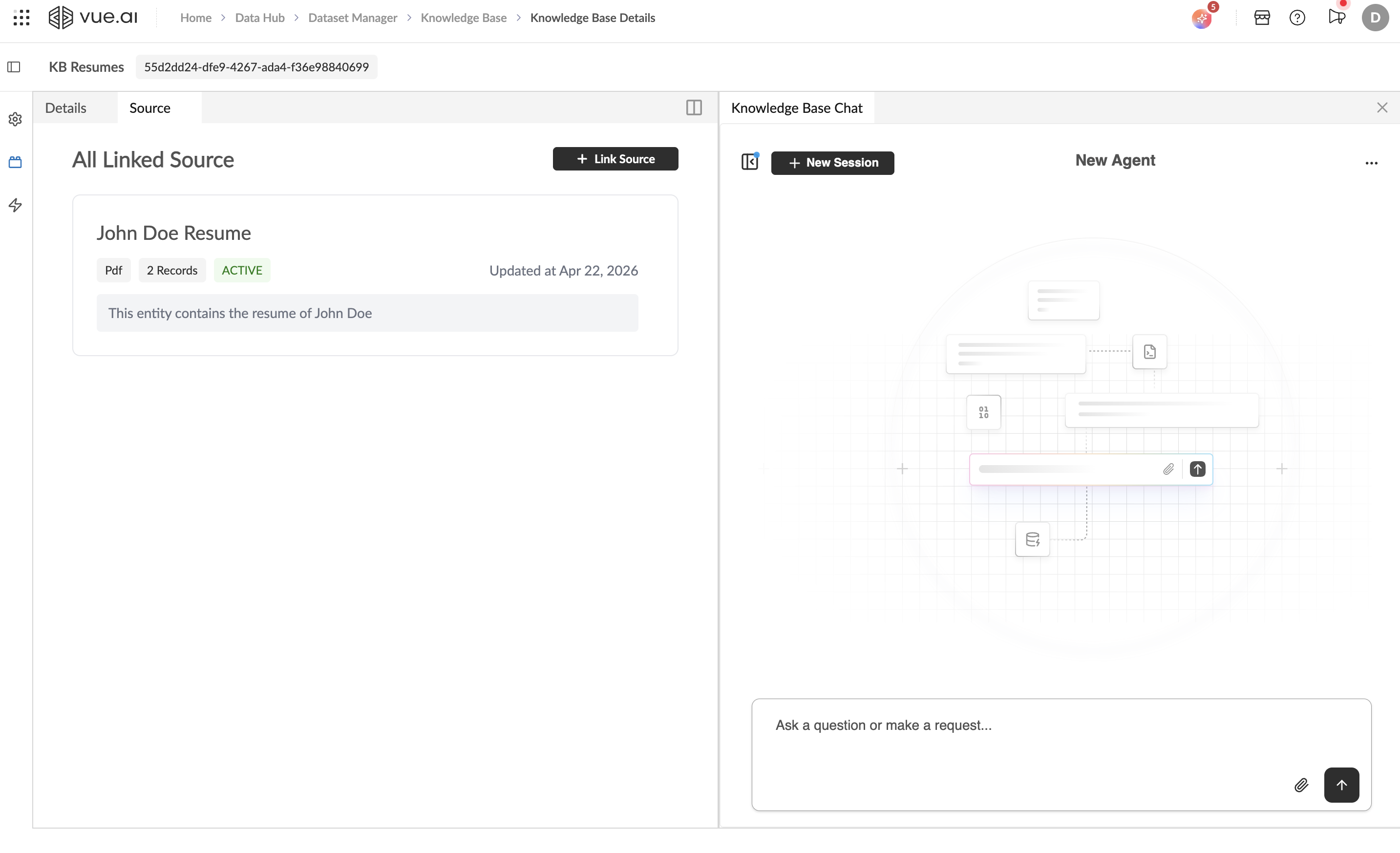
- Click the Source tab.
- Click + Link Source.
- Fill in the form:
- Name: Give your source a name (e.g., "Sample Document").
- Source Type: Select Upload File.
- Description: Brief description of the document.
- Drag and drop your file into the upload zone, or click to browse.
- Click Create.
The source will appear as a card in the Source tab with a Pdf type badge, record count, and ACTIVE status once processing completes.
Tip: You can also select URL as the source type and provide a web address instead of uploading a file.
Step 4: Query Your Knowledge Base
- Look at the Knowledge Base Chat panel on the right side of the screen.
- Click the input area that says "Ask a question or make a request...".
- Type a question about your uploaded document. For example:
- "Summarize this document"
- "What are the key topics covered?"
- Press Enter to send.
The AI will retrieve relevant information from your uploaded document and generate a response.
Step 5: Try More Queries
Experiment with different types of questions:
- Fact-based: "What dates are mentioned in the document?"
- Summarization: "Give me a brief summary of the content."
- Specific details: "What qualifications are listed?"
Click + New Session to start a fresh conversation at any time.
What You've Accomplished
In this quickstart, you:
- ✅ Created a new Knowledge Base
- ✅ Uploaded a document as a knowledge source
- ✅ Queried the document using natural language AI chat
Next Steps
- Add more sources — upload additional documents or URLs to enrich your KB
- Explore How-to Guides: Knowledge Base for detailed instructions
- Learn about Knowledge Base concepts for a deeper understanding