

1. Introduction
This guide walks you through creating a new Knowledge Base in the Vue.ai platform. A Knowledge Base is a centralized repository where you can upload documents and web content, making them queryable through AI-powered chat.
Who is this guide for? Users who want to organize unstructured documents (PDFs, Markdown files, etc.) into a searchable knowledge store.
2. Prerequisites
Before you begin, ensure:
- You have access to the Vue.ai platform with appropriate permissions.
- You know the purpose and scope of the Knowledge Base you want to create.
3. Step-by-Step Instructions
3.1 Navigate to Knowledge Base
- From the Vue.ai home screen, navigate to Data Hub → Dataset Manager → Knowledge Base.
- You will see the Knowledge Base listing page showing all existing Knowledge Bases.
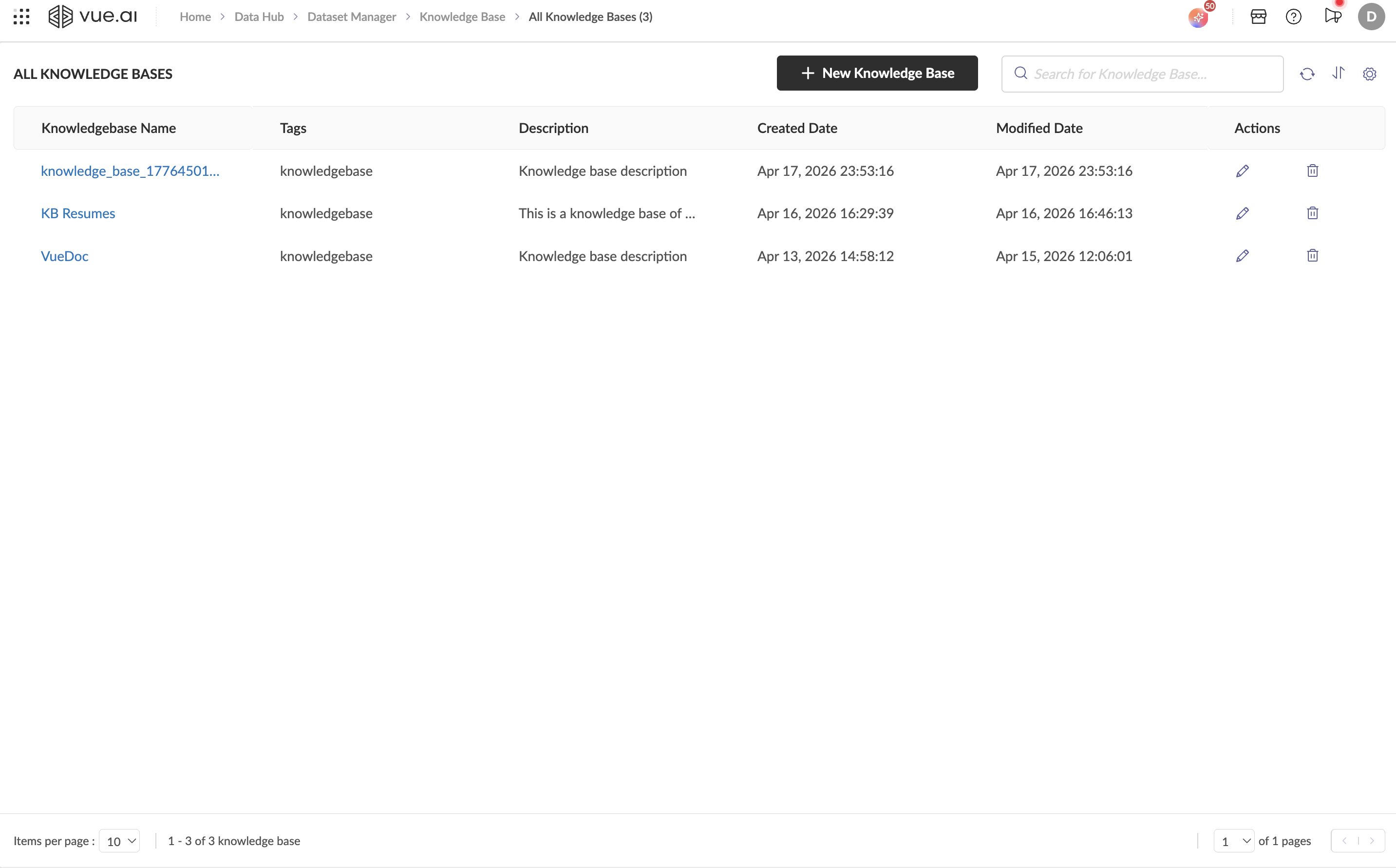
3.2 Create a New Knowledge Base
Click the + New Knowledge Base button at the top of the listing page.
The platform will automatically create a new Knowledge Base and redirect you to its Details page. The KB is assigned:
- A default name (e.g.,
knowledge_base_1776449123456) - A unique ID (UUID) that cannot be changed
- A default tag:
knowledgebase
- A default name (e.g.,
3.3 Configure Knowledge Base Details
On the Details tab, update the following fields:
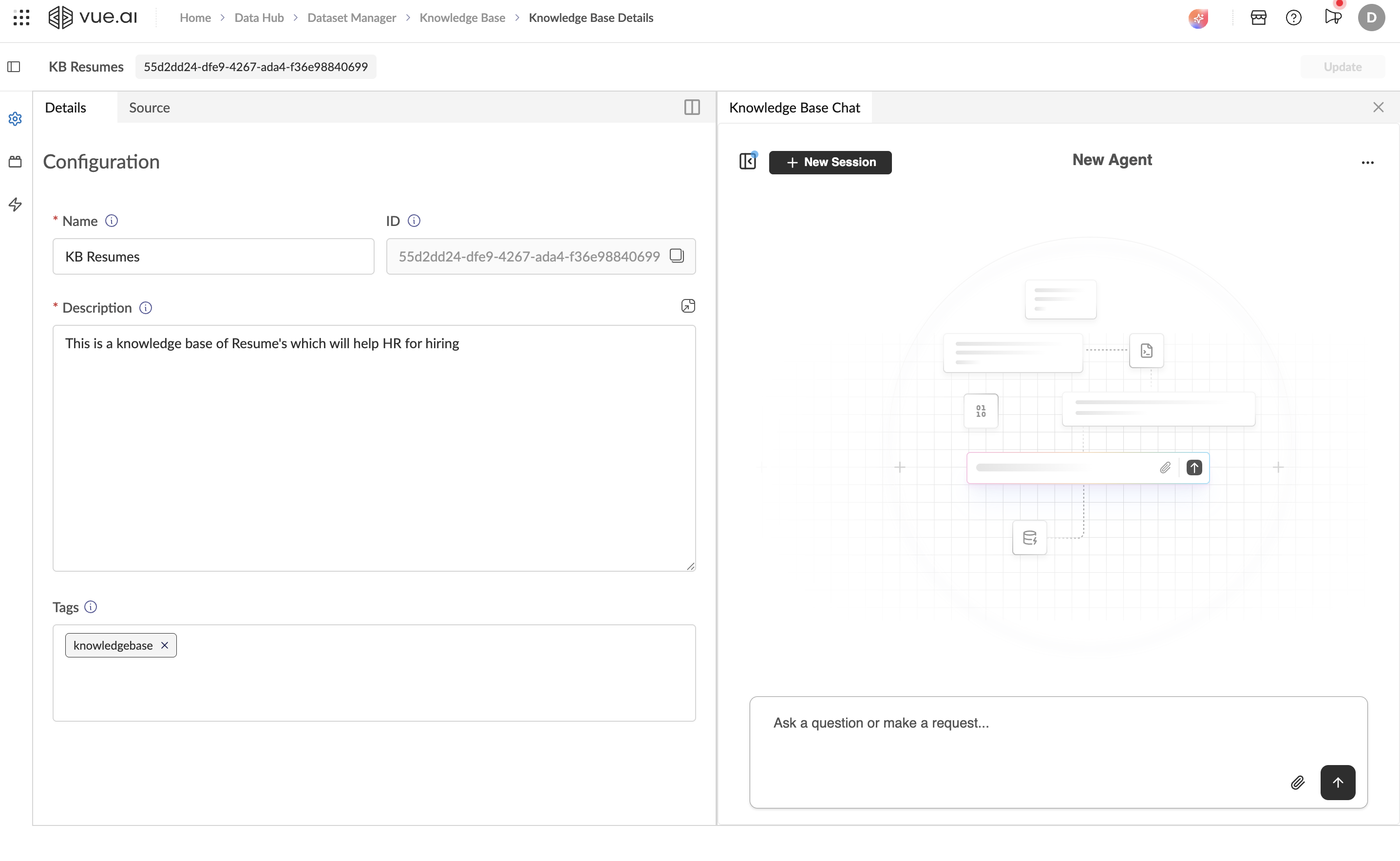
Name (required): Replace the auto-generated name with a descriptive name for your Knowledge Base (e.g., "HR Resumes", "Product Documentation").
Description (optional): Provide a clear description of the Knowledge Base's purpose and contents. This helps other team members understand what the KB is for.
Tags: Add or modify tags for categorization. Tags make it easier to search and filter Knowledge Bases in the listing page.
Click the Update button (top right corner) to save your changes.
Choose a descriptive, meaningful name for your Knowledge Base. Names like "KB Resumes" or "Sales Playbook" are more useful than generic names.
4. Understanding the Knowledge Base Interface
After creation, the Knowledge Base interface is split into two panels:
Left Panel — Configuration & Sources
Contains two tabs:
- Details: Edit KB name, view ID, update description and tags.
- Source: Manage linked documents and URLs (see Manage Sources).
A vertical sidebar on the far left provides quick access icons:
- Settings (gear icon): Opens the Details/Source view.
- Sources (layers icon): Direct access to source management.
- Add Entity (lightning icon): Quickly add a new knowledge entity.
Right Panel — Knowledge Base Chat
A built-in AI chat interface for querying your KB content (see Query a Knowledge Base).
Note: The interface also supports a Split View mode (icon at the top right of the left panel) that allows viewing two tabs side-by-side.
5. Managing Knowledge Bases
Editing a Knowledge Base
- From the listing page, click the Edit (pencil) icon in the Actions column for the KB you want to modify.
- Alternatively, click the KB name to open its detail view and modify fields directly.
Deleting a Knowledge Base
- From the listing page, click the Delete (trash) icon in the Actions column.
Deleting a Knowledge Base removes it permanently along with all its linked sources and processed data. This action cannot be undone.
Searching and Sorting
- Use the search bar to find Knowledge Bases by name.
- Use the sort icon to change the display order.
- Use the refresh icon to reload the listing.
- Adjust items per page at the bottom of the listing (default: 10).
6. Next Steps
After creating your Knowledge Base, proceed to:
- Manage Sources — Add documents and URLs to your KB.
- Query a Knowledge Base — Start querying your KB using the chat interface.
7. FAQ
Can I rename a Knowledge Base after creating it?
Yes. Open the Knowledge Base, go to the Details tab, update the Name field, and click Update.
What is the auto-generated name format?
New Knowledge Bases are automatically named using the format knowledge_base_[timestamp] (e.g., knowledge_base_1775815467123). You should rename it to something descriptive.
Can I have multiple Knowledge Bases?
Yes. You can create as many Knowledge Bases as needed. Each KB is independent with its own sources and chat interface.
What is the difference between a Knowledge Base and a Dataset?
A Knowledge Base is designed for unstructured content (PDFs, documents) and supports natural language querying via AI chat. A Dataset is designed for structured, tabular data (CSV) and supports profiling, sampling, and metrics.