

1. Introduction
The Knowledge Base Chat is a built-in conversational interface that allows you to query the documents and web content stored in your Knowledge Base using natural language. It uses retrieval-augmented generation (RAG) to find relevant information and produce AI-generated responses.
Who is this guide for? Users who have created a Knowledge Base with linked sources and want to retrieve information from their documents through conversational queries.
2. Prerequisites
Before you begin:
- A Knowledge Base must be created with at least one linked source in
ACTIVEstatus (see Create a Knowledge Base and Manage Sources).
3. Accessing Knowledge Base Chat
- Navigate to Data Hub → Dataset Manager → Knowledge Base.
- Click on the Knowledge Base you want to query.
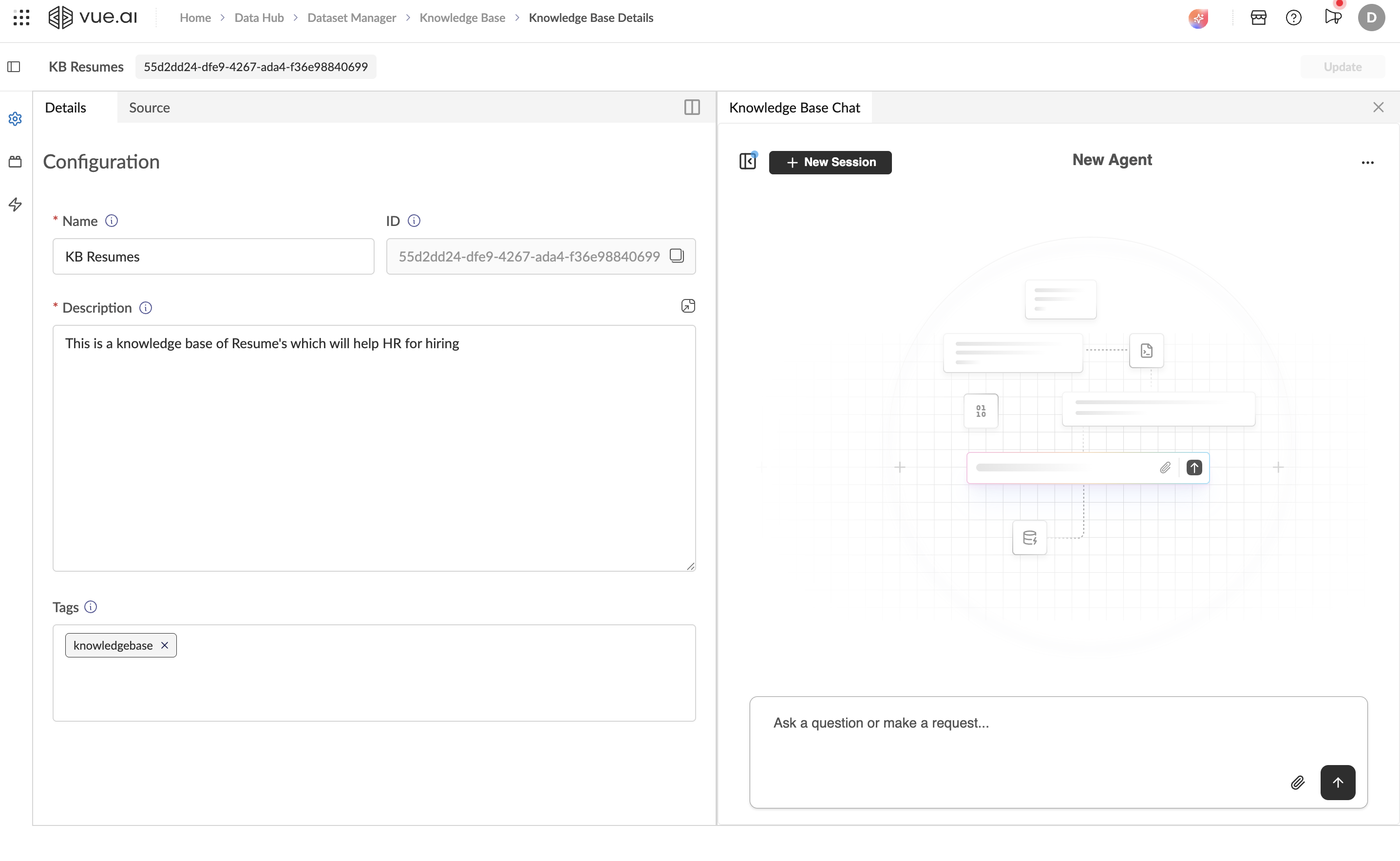
- The Knowledge Base Chat panel appears on the right side of the screen.
4. Using the Chat Interface
4.1 Starting a Conversation
- Click the text area at the bottom of the chat panel that reads "Ask a question or make a request...".
- Type your question in natural language. For example:
- "What skills does Dinesh Kumar have?"
- "Summarize the key points of the uploaded document."
- "What are the qualifications listed in the resumes?"
- Press Enter or click the Send button (arrow icon) to submit your query.
4.2 Understanding Responses
The AI will:
- Search through all
ACTIVEsources linked to the Knowledge Base. - Retrieve the most relevant records (chunks) that match your query.
- Generate a natural language response based on the retrieved information.
Responses are grounded in the actual content of your documents, making them reliable for fact-based queries.
4.3 Managing Chat Sessions
- Create a New Session: Click the + New Session button at the top of the chat panel to start a fresh conversation. Previous sessions are preserved for reference.
- Session History: Use the search icon next to the session list to find past conversations.
- Session Options: Click the three-dot menu (⋯) next to a session to access additional options:
- Star: Mark a session as a favorite for quick access.
- Delete: Remove a session from the history.
5. Tips for Effective Queries
- Be Specific: Instead of "Tell me about the documents", ask "What programming languages are mentioned in the resumes?".
- Use Keywords: Include specific terms from your documents for better retrieval accuracy.
- Ask Follow-ups: The chat maintains context within a session, so you can ask follow-up questions to drill deeper.
- Try Different Phrasings: If a query doesn't return the expected results, rephrase it or use different terminology.
- Start New Sessions for New Topics: When switching to a completely different topic, create a new session for clarity.
6. Example Queries
Here are examples of the types of questions you can ask, depending on your Knowledge Base content:
| Content Type | Example Query |
|---|---|
| Resumes | "What is the work experience of Ankur Das?" |
| Technical Docs | "How do I configure the API authentication?" |
| Policies | "What is the company's leave policy for new employees?" |
| Reports | "Summarize the key findings from the Q4 report." |
| FAQs | "What are the supported file formats?" |
7. Troubleshooting
Common Issues and Solutions
Problem: Chat Returns Irrelevant or Empty Responses
Cause: The query may not match any content in the linked sources, or the sources may not be fully processed. Solution:
- Verify that your sources show
ACTIVEstatus in the Source tab. - Ensure the documents actually contain the information you're querying.
- Try rephrasing the question with different keywords.
Problem: Chat Is Not Responding
Cause: Network issues or the AI service may be temporarily unavailable. Solution:
- Refresh the page and try again.
- Click + New Session to create a fresh conversation.
Problem: Responses Don't Reference Recently Added Sources
Cause: The new source may still be processing. Solution: Check the Source tab to confirm the source status is ACTIVE. If it's still processing, wait until processing completes.
8. FAQ
Can I export chat conversations?
Currently, chat conversations are stored within the platform and can be accessed through session history. Exporting is not available at this time.
Does the chat remember previous conversations?
Yes, within the same session, the chat maintains conversation context. When you create a new session, context resets. Past sessions are preserved in the session history.
How many sources can a Knowledge Base have?
There is no hard limit on the number of sources. However, for optimal performance, consider organizing very large collections into multiple Knowledge Bases by domain or topic.